🔗 Click to cancel the subscription provided by Apple:https://account.apple.com/account/manage/section/subscriptions
---------------------
Unsubscribe on iPhone, iPad, or Apple Vision Pro
---------------------
1. Open the "Settings" app.
2. Tap your name lightly.
3. Tap on "subscribe".
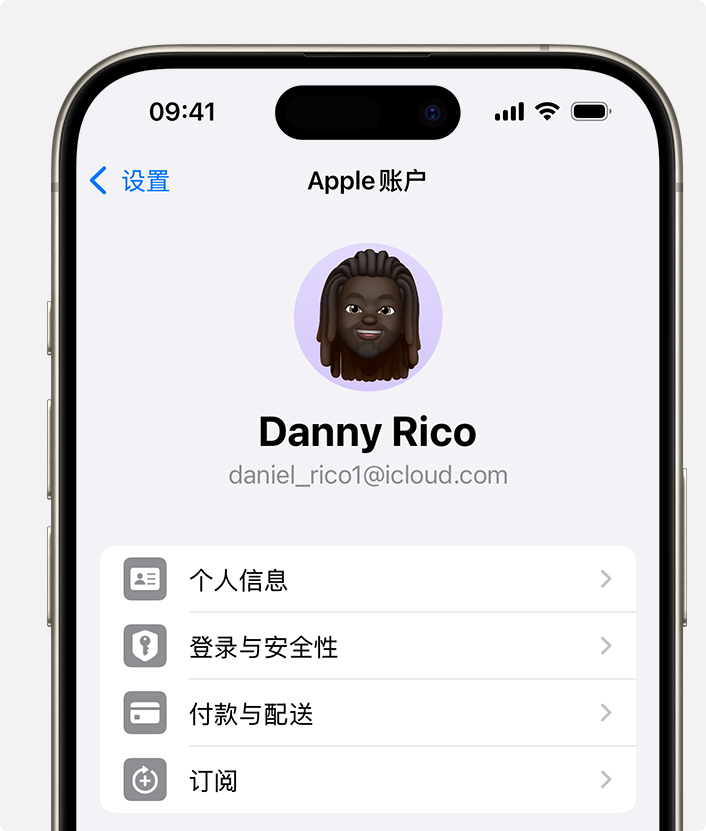
4. The "Apple Account" settings in the "Settings" app on iPhone.
Click on the corresponding subscription.
5. Click on "Unsubscribe". You may need to scroll down to find the 'Unsubscribe' button. If there is no 'cancel' button, or if you see expiration information displayed in red text, it means that the corresponding subscription has been cancelled.
---------------------
Unsubscribe on Mac
---------------------
1. Open the App Store App.
2. Click on your name. If your name cannot be found, please click "Login".
3. Click on "Account Settings".
Scroll to "Subscription" and click "Manage".
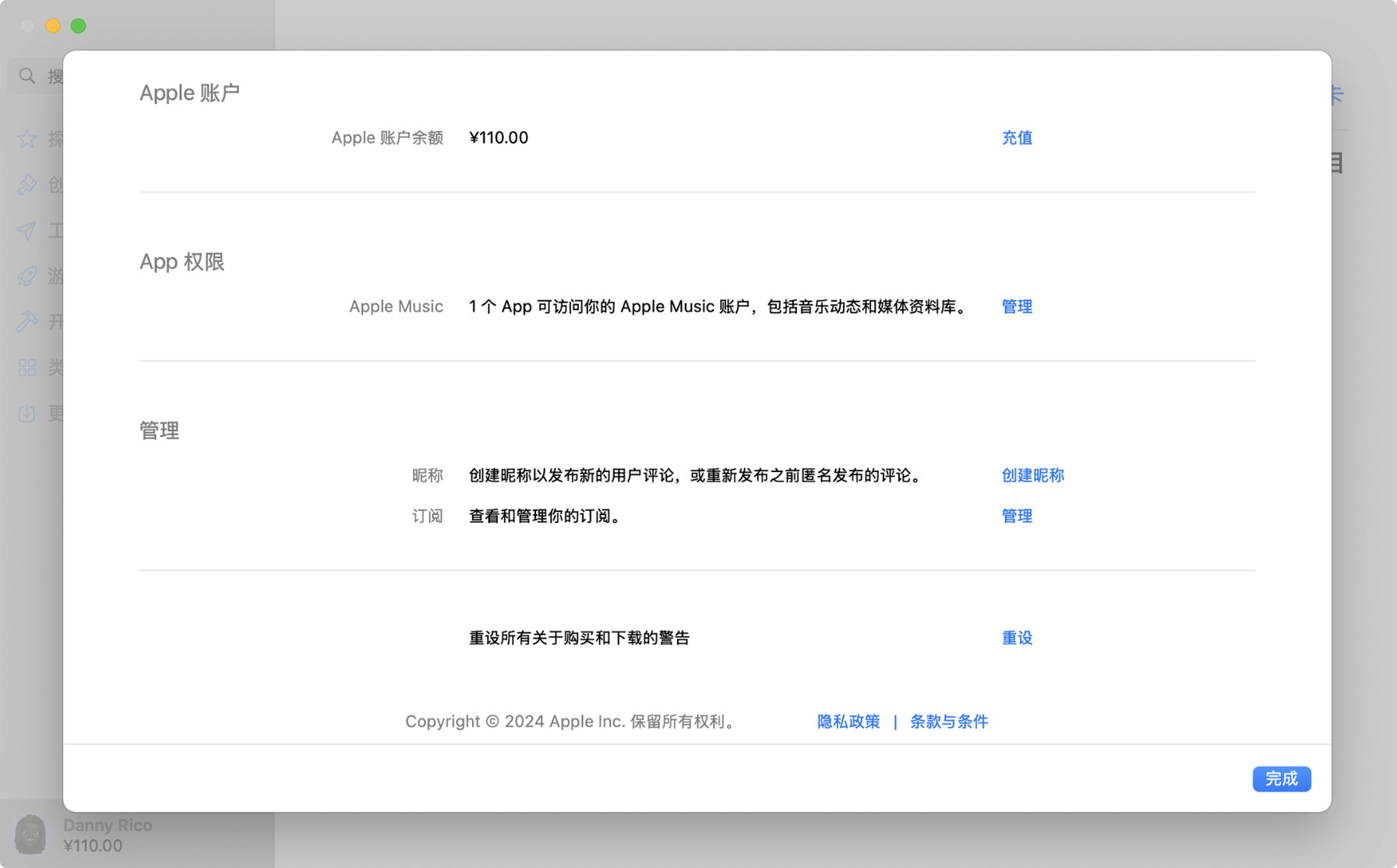
5. The "Apple Account" settings in the App Store on Mac.
Click on the corresponding subscription.
6. Click "Unsubscribe". You may need to scroll down to find the 'Unsubscribe' button. If there is no 'cancel' button, or if you see expiration information displayed in red text, it means that the corresponding subscription has been cancelled.
---------------------
Unsubscribe on Windows PC
---------------------
You canCancel Apple Music on the webpage, andCancel Apple TV on the webpage+To cancel any subscription charged by Apple, please use the Windows version of the Apple Music App or Apple TV App.
Use the Windows version of Apple Music App or Apple TV App.
On a Windows PC, open the Apple Music App or Apple TV App.
2. Click on your name at the bottom of the sidebar and select "View My Account". You may need to log in to your Apple account.
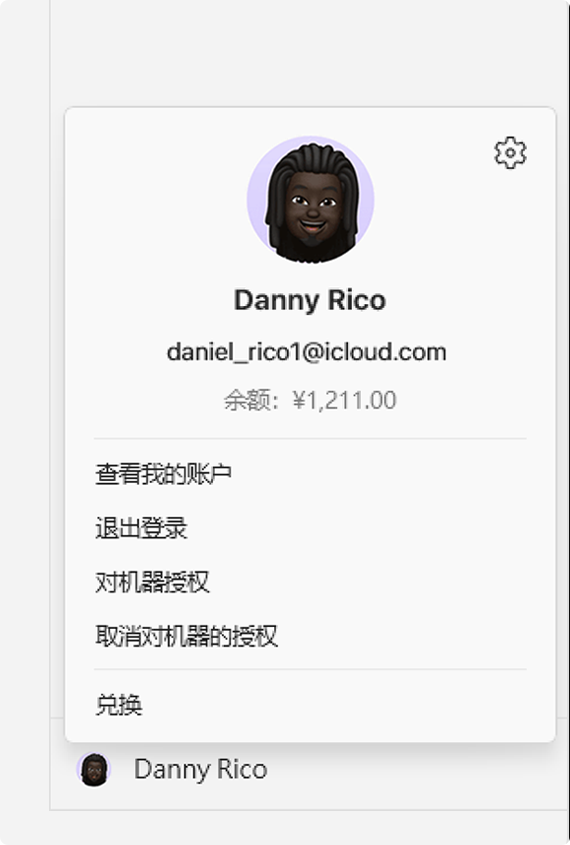
3. Scroll to the "Settings" section. Next to "Subscription", click "Manage".
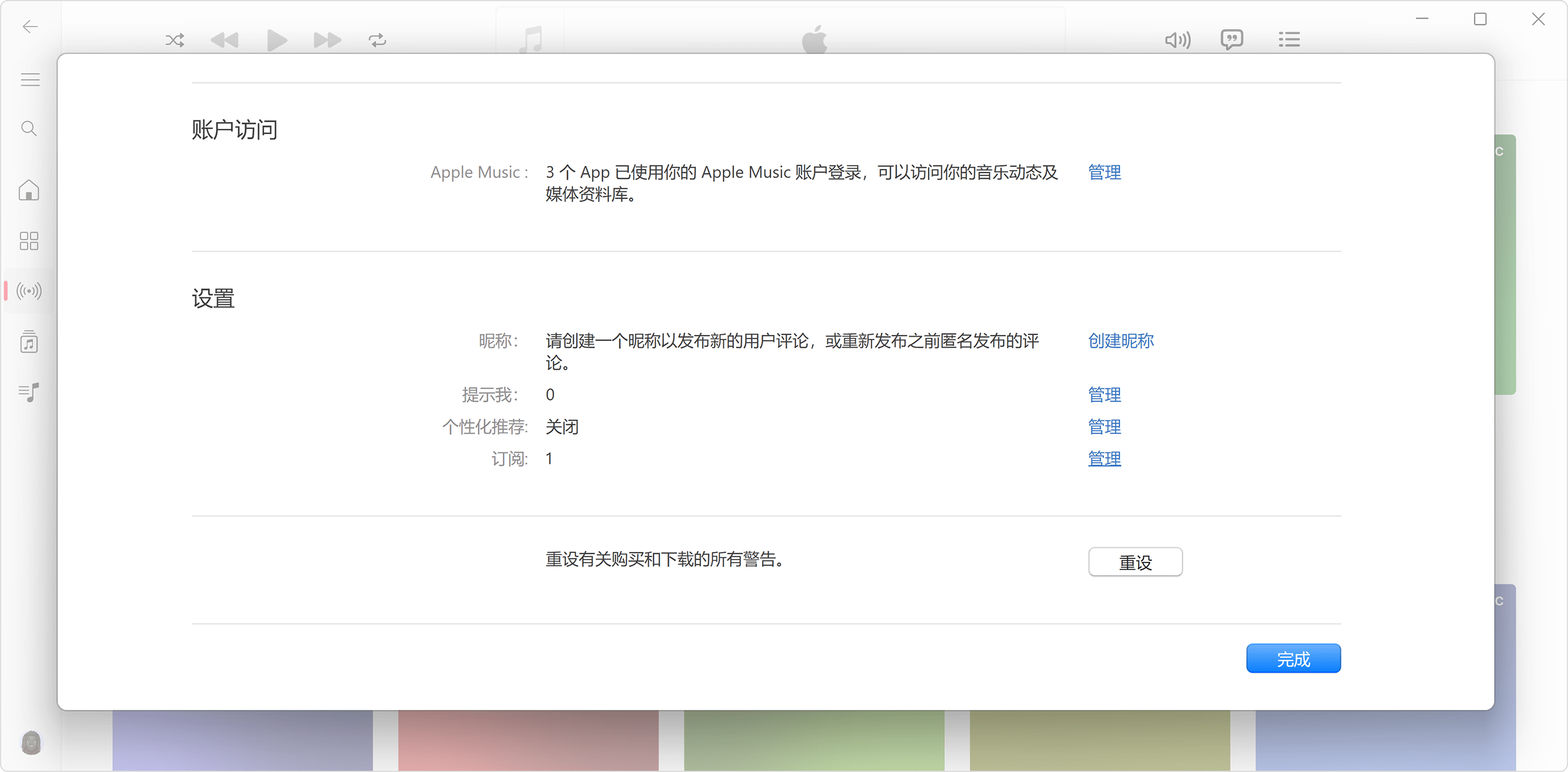
4. Find the subscription you want to cancel and click "Edit".
5. Click "Unsubscribe". If there is no 'Cancel' or 'Unsubscribe' button, it means that the corresponding subscription has been cancelled.
If you are using an earlier version of iTunes for Windows
On a Windows PC, open iTunes.
2. Select "Account" from the menu bar at the top of the iTunes window, and then choose "View My Account".
3. Scroll to the "Settings" section. Next to "Subscription", click "Manage".
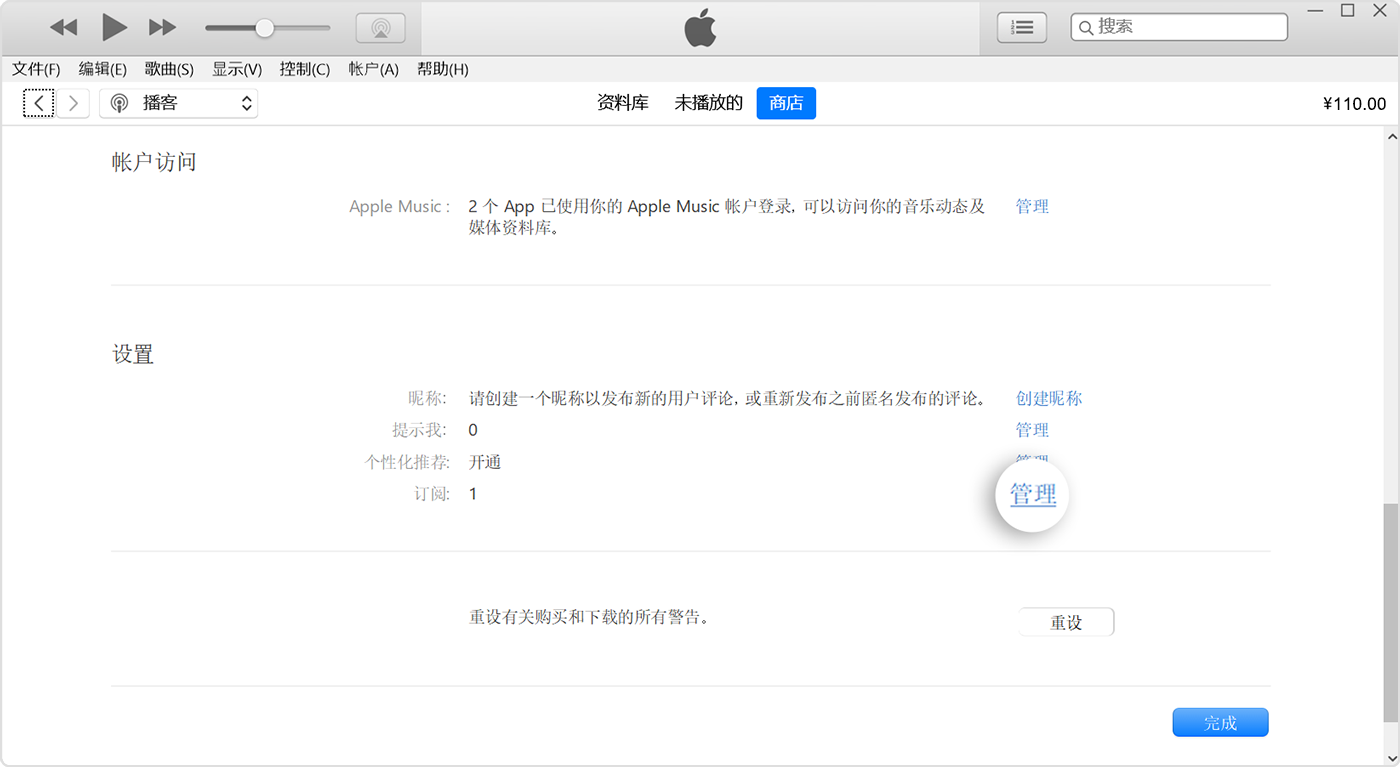
4. Find the subscription you want to cancel and click "Edit".
5. Click "Unsubscribe". If there is no 'Cancel' or 'Unsubscribe' button, it means the subscription has been cancelled.
---------------------
Unsubscribe on Android devices
---------------------
If you have subscribed to Apple Music, Apple TV+, or MLS Season Pass on your Android device and paid through Google Play, you can unsubscribe from the Google Play App.
To cancel a subscription charged by Apple, please follow these steps:
- Go to account.apple.com.
- Follow the instructions on the screen. The system will require you to log in with an Apple account.